Manual · Cutler-Hammer
D820 Micro PanelMate Getting Started Users Guide
Manual46 pagesPDF 437 KB
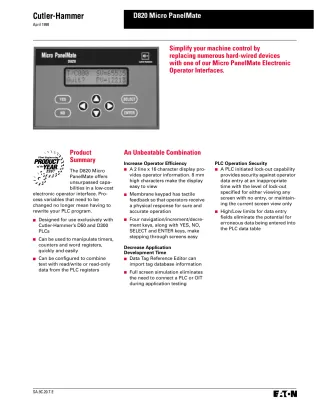
Getting started guide for the Cutler-Hammer D820 Micro PanelMate operator interface with the D50/D300 PLCs, built around a sample program.
Covers · 1 model
The models it covers
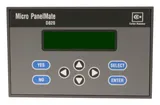
Summary
What is in it
Cutler-Hammer's getting started guide for the D820 Micro PanelMate operator interface. It explains how the Micro PanelMate works with the D50/D300 series of PLCs and how operators use it, the PC requirements and installation of the Micro PanelMate Configuration Editor, and then walks through building a sample program (hardware setup, data references, node list, page properties, integrity check, simulator) and downloading it into the D820.
Its parts
- How a Micro PanelMate Enhances the D50/D300 Series of PLCs
- How to Begin
- Understanding the Micro PanelMate Configuration Editor
- Downloading the Sample Configuration
From the manual
Key facts from this manual
Each line names its page in the PDF.
A 1997 Cutler-Hammer getting started guide for the D820 Micro PanelMate operator interface used with D50 and D300 PLCs. It walks through installing the Micro PanelMate Configuration Editor, building and checking a sample page configuration, testing it in the built-in simulator, and connecting the D820 to a PC to download it.
- Connection parts
- 5VDC power supply, RS232-RS485 adapter D50CPM485, D800CBLCH82 communication cable, gender changer p. 42
- Display
- 2 lines by 16 characters; up to three objects per page p. 29
- Configuration software
- Micro PanelMate Configuration Editor, installed from 3.5-inch high-density floppy disks p. 17
- PC requirements
- Windows 3.X, 95 or NT; 386 (486/66 MHz recommended); 4 MB memory; 4 MB disk; VGA p. 16
- Pages
- Page numbers 1 to 400 p. 28
- Download mode
- Hold ENTER while applying power, then press YES p. 43
- Display formats
- Decimal with 0 to 5 decimal places, hexadecimal, binary, ASCII p. 32
- YES and NO keys
- Written as bits to a PLC command word for the ladder logic to act on p. 36
- Node addresses
- Node 255 is a global D50/D300 address; the sample puts the Micro PanelMate at node 1 p. 26
- Hardware setup fields
- Integer Triggers Reference, Command Register Reference, D800 Node Address p. 24
- Data tags
- Spreadsheet format; label listing can be imported from the D50/D300 GPC programming software p. 25
- Memory usage bar
- Green fits; yellow nears the limit; red will probably not fit p. 35
- Series ports
- Micro PanelMate Series: one port on the back; RS-232, RS-422/485 and Current Loop can be accommodated p. 13
- Document
- D820 Micro PanelMate Getting Started Users Guide, P/N 01-00318-01, 1997 p. 1, 2
What this manual walks you through
- Installing the Micro PanelMate Configuration Editor p. 17
- Opening the sample configuration p. 20
- Setting up the D820 hardware configuration p. 24
- Setting D50/D300 node addresses p. 26
- Creating a page with static text and PLC data objects p. 28, 29, 30, 31
- Setting entry limits and display format for PLC data p. 32, 33
- Running the Integrity Check p. 34, 35
- Testing a configuration in the built-in simulator p. 36, 37, 38, 39
- Downloading the sample ladder into a D50/D300 PLC p. 41
- Connecting the D820 to a PC and preparing it for download p. 42, 43
Good to know
- A configuration cannot be downloaded to the unit, or simulated, until it passes the Integrity Check. p. 34
- Do not let the memory usage bar stay red; remove and condense pages until it returns to yellow. p. 35
- To make a PLC data field read only, clear the Entry Allowed box rather than setting both limits to zero. p. 33
- A space entered as a Static Text object cannot be selected or deleted. p. 30
- The simulator does not show what the YES and NO keys do; the PLC ladder logic acts on those bits. p. 36
Questions this manual answers
What cable and adapter connect the D820 to a PC?
A 5VDC power supply, the RS232-RS485 adapter D50CPM485, a gender changer and the D800CBLCH82 communication cable. p. 42
How do I put the D820 into download mode?
Hold the ENTER key while applying power, press YES, then press Connect in the Micro PanelMate Configuration Editor. p. 43
What software is used to program the D820 Micro PanelMate?
The Micro PanelMate Configuration Editor, which runs on Windows 3.X, Windows 95 or Windows NT. p. 16
How many pages and objects can a D820 configuration have?
Page numbers run from 1 to 400, and each page holds up to three objects. p. 28, 29
Why do the YES and NO keys do nothing in the simulator?
The D820 writes those keys as bits to the PLC command word, so the PLC ladder logic decides what they do. p. 36
The whole text · 5 parts
Read the manual here as text
Its text as extracted from the PDF, unedited, in parts; each page opens the PDF at that page.
The file