Manual · Cognex
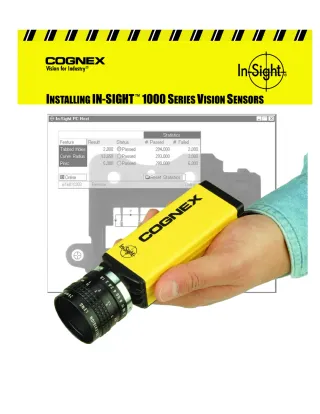
Installing In-Sight 1000 Series Vision Sensors
Manual46 pagesPDF 3.1 MB
Installation manual for the Cognex In-Sight 1000 and 1000C vision sensors: connections, networking, network settings and specifications.
Covers · 1 model
The models it covers
Summary
What is in it
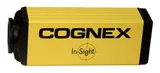
Cognex's installation guide for the In-Sight 1000 series networked machine vision sensors (In-Sight 1000 and color In-Sight 1000C). It explains standalone and factory-floor network setups, connecting the network cable, breakout cable, breakout module and I/O expansion module, installing In-Sight PC Host software, adding the sensor to DHCP and non-DHCP networks, changing network settings, and the general, I/O, cable and mechanical specifications.
Its parts
- Introduction
- Installing the In-Sight 1000
- Specifications
From the manual
Key facts from this manual
Some pages are scans or cannot be read; this says only what the readable text supports. Each line names its page in the PDF.
Installation manual for the Cognex In-Sight 1000 and In-Sight 1000C machine vision sensors. It explains how to network and wire the sensor, connect the optional Breakout and I/O Expansion Modules, and install the In-Sight PC Host software. It also gives the general, I/O, network cable and mechanical specifications.
- Device
- Networked machine vision sensor (processor and camera in one) for inspection, measurement, identification, alignment and robot guidance p. 9
- Image sensor
- 1/3-inch CCD, 640 x 480 pixels, up to 30 frames per second p. 36
- Power
- 24 ± 10% VDC, 200mA, 4.8W p. 36
- Memory
- 4MB non-volatile flash for jobs; 16MB SDRAM for images and processing p. 36
- Network
- 1 Ethernet port, 10/100 BaseT, TCP/IP; DHCP (factory default) or static IP address p. 36
- Serial
- 1 RS-232C port, 1200 to 115,200 baud p. 36
- Trigger input
- 1 opto-isolated acquisition trigger; ON 20 to 28V; 250 µSec latency; pulse at least 1 ms wide p. 38
- Discrete outputs
- 2 built-in NPN outputs, 28V maximum, 200mA maximum sink current each p. 39
- Expansion I/O
- I/O Expansion Module P/N 800-5758 adds 8 inputs and 8 outputs; Ethernet I/O Modules P/N CIO-ENET-IN4 and CIO-ENET-OUT4 p. 36
- Cables and modules
- Breakout Cable P/N 300-0340-15 (included); optional Breakout Module P/N 800-5743 with Breakout Module Cable P/N 300-0341-15 p. 16, 17, 18
- Lens mount
- C-mount p. 36
- Size and weight
- 118.60 x 43.18 x 38.61 mm (4.66 x 1.70 x 1.52 in); 210.0 g (7.5 oz) p. 36
- Temperature
- 10 to 45°C operating, -10 to 65°C storage; 10 to 90% humidity, non-condensing p. 36
- PC software
- In-Sight PC Host 2.30 or later on Windows XP, 2000, NT 4.0 (Service Pack 4 or later), Me or 98SE p. 21
What this manual walks you through
- Choosing a standalone or factory-floor network layout p. 11, 12, 13
- Connecting the network cable to a switch or directly to another system p. 15, 16
- Wiring the Breakout Cable to power, trigger, outputs and serial p. 16
- Connecting the Breakout Module p. 17, 18
- Connecting the I/O Expansion Module p. 19, 20
- Installing In-Sight PC Host software p. 21
- Breakout port pin assignments and wire colors p. 37
- Wiring the trigger input from NPN or PNP sensors and PLC outputs p. 38
- Wiring the outputs to PLC inputs, relays and LEDs p. 39, 40
- Straight-pinned and crossover CAT5 cable wiring p. 41
Good to know
- Connect the sensor only to 24VDC; any other voltage risks fire or shock and can damage it. p. 4
- The sensor has no user-serviceable parts and should not be opened. p. 4
- Trigger polarity does not matter with the Breakout Cable, but must be observed on the Breakout or I/O Expansion Modules. p. 38
- On the I/O Expansion Module, OUT0 through OUT7 are slower than the HSOUT0 and HSOUT1 outputs. p. 20
- High-current inductive loads on the outputs need an external protection diode. p. 39
Questions this manual answers
What power supply does the Cognex In-Sight 1000 need?
24 VDC plus or minus 10%, 200mA, 4.8W. p. 36
What is the part number of the In-Sight 1000 breakout cable?
The In-Sight Breakout Cable is P/N 300-0340-15 and comes with every sensor. p. 16
How do I add more inputs and outputs to an In-Sight 1000?
The optional I/O Expansion Module (P/N 800-5758) adds 8 discrete outputs, 8 discrete inputs and RS232 hardware handshaking. p. 19, 36
What PC software configures the In-Sight 1000?
In-Sight PC Host software version 2.30 or later, on Windows XP, 2000, NT 4.0 (Service Pack 4 or later), Me or 98SE. p. 21
Does the In-Sight 1000 use DHCP?
DHCP is the factory default; a manual reset switch disables DHCP and forces the factory-assigned static IP address. p. 36
Contents
Chapters and sections
Each line opens the PDF at its page.
The whole text · 6 parts
Read the manual here as text
Its text as extracted from the PDF, unedited, in parts; each page opens the PDF at that page.
The file