Manual · Cutler-Hammer
PanelMate Series 500 Getting Started User's Guide
Manual127 pagesPDF 3.3 MB
Getting started guide for the Cutler-Hammer PanelMate Series 500 operator stations, including the 542VM with Virtual Mentor.
Covers · 2 models
The models it covers
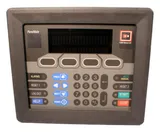
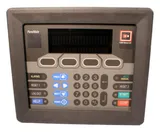
Summary
What is in it
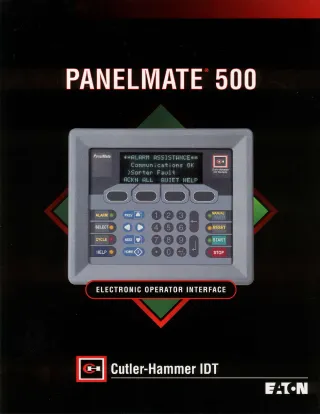
Cutler-Hammer IDT's getting started guide for the PanelMate 500 electronic operator station, a family of multi-line text display units for use with PLCs. It explains how the units work online with PLCs, a startup flowchart from unboxing to running online, loading the configuration software, creating a configuration and pages, assigning PLC communications, the Virtual Mentor capability of the 542VM and 542LM, compiling, transferring and running online, with sample configurations and startup files.
Its parts
- Overview & Notes for Previous Users of PanelMate
- How PanelMate Units Work Online With PLCs
- From Opening the Boxes to Running Online: A Master Startup Flowchart
- Loading the Software To Your Personal Computer
- Creating a New Configuration (set of pages)
- Assigning PLC Communications
- Creating New Pages
- Configuring with the Virtual Mentor Capability
- Saving the Configuration
- Compiling the Configuration
- Transferring the Configuration to an Online Unit
- Running the PanelMate 500 Unit Online With the PLC
From the manual · read page by page
Key facts from this manual
Each line names its page in the PDF.
Getting Started User's Guide (P/N 01-00258-00, dated 09/18/96) for the Cutler-Hammer IDT PanelMate Series 500 text-display operator stations for PLCs. It covers the whole family of six online models (522L, 522V, 542L, 542V, 542LM and 542VM), with the Virtual Mentor feature limited to the 542LM and 542VM. It walks through installing the Windows configuration software, setting up PLC communication, building pages, compiling, transferring to the unit and checking the PLC link; panel mounting and power wiring are left to a separate Hardware Installation Guide.
- What it is
- Electronic operator station for PLCs that replaces hard-wired pushbuttons, lamps and message displays p. 20
- Display
- 4-line or 2-line text display, vacuum fluorescent (VFD) or LCD p. 20
- Models
- Six online models: 522L, 522V, 542L, 542V, and the 542LM and 542VM, the 4-line LCD and vacuum fluorescent models with Virtual Mentor p. 107, 114
- Power
- 24 VDC (connection details are in the unit's Hardware Manual) p. 30
- Keys
- 4 soft function keys under the display, 8 configurable fixed function keys, numeric keypad, blue Previous/Next/Home navigation keys, Tab Left and Tab Right p. 16
- Indicators
- 4 or 8 tri-color LEDs (by model) with selectable blink rates, plus an internal horn p. 25
- PLC support
- Nearly 100 PLC models; one PLC or one PLC network at a time, up to 10 networked PLCs on one page p. 23
- Ports
- Port 1 serial (RS422/RS485 jack, also used for transfer); Port 2, an I/O port and a printer on Port 2 only on 4-line versions p. 47, 92
- PLC cables
- Factory cables named in the startup charts: AB33 or AB34 (SLC 500 DH 485), AB36 (SLC 5/03 and 5/04 RS232), AB37 and AB38 (PLC 5 RS 232 and RS 422), CH31, CH32, GE31, GE32, GE33 p. 101, 102, 103, 104, 105, 106
- Network cards and options
- Plug-in cards for A-B AcceleratI/On, Modicon Modbus Plus and Genius I/O; the A-B DH-485 driver and the Print Option are unlocked by one-time option disks p. 90
- Configuration software
- PanelMate 500 Configuration Software for Windows 3.1, Windows for Workgroups or Windows 95 on MS-DOS 5.0 or later; 386 or better, 4 MB RAM, 9 MB disk, 3.5-inch drive, VGA p. 37
- Page types
- Menu, Data, Maintenance, Change Password and Setup pages, plus a System Page for the keys and LEDs; Data pages hold 6 object types p. 11, 12, 16
- Alarms
- Alarm page keeps up to the 100 most recent alarms, with horn, blinking alarm LED and optional serial printer log p. 25, 28
- File types
- Compiled files .ova (2-line VFD), .ovb (4-line VFD), .ola (2-line LCD), .olb (4-line LCD); uncompiled .cva, .cvb, .cla, .clb p. 91, 100
What this manual walks you through
- Installing the configuration software on a PC p. 37, 38
- Starting a new configuration p. 42, 43
- Setting up PLC communication in the PLC Name and Port Table p. 45, 46, 47, 48, 49, 50
- Building Data, Menu, Change Password, Setup and Maintenance pages p. 56, 57, 59, 61, 62, 63, 64, 65
- Assigning the function keys and LEDs and setting up alarms p. 66, 67, 68, 69, 70
- Writing Virtual Mentor response templates p. 75, 76, 77, 78, 79
- Saving and compiling a configuration p. 81, 83
- Putting the unit in transfer mode and downloading the driver and configuration p. 85, 87, 88, 89, 90, 91, 92, 93
- Running online and fixing communication errors p. 95
- Checking the PLC link with the communication startup files p. 97, 98, 99, 100, 101
Good to know
- While transferring, nothing may be plugged into the Serial Port 1 RS422/RS485 jack, or download errors can result. p. 92
- A new unit needs its PLC driver downloaded before the configuration, and the configuration may not be newer than the driver. p. 34, 85
- Only one key on the unit may be pressed at a time. p. 125
- ScratchPad registers reset to zero whenever power is removed. p. 78
- Turn off laptop power saving before a transfer, since it can shut down the serial port. p. 87
Questions this manual answers
How do I put a PanelMate 500 into transfer mode?
Hold the HELP key (function key 4) while cycling power, then choose More, Transfer Mode, More and Serial Mode with the soft keys. p. 92, 95
What power supply does a PanelMate 500 need?
The guide says the unit runs on 24 VDC and refers to the Hardware Manual for the connection. p. 30
Can a PanelMate 500 connect to Allen-Bradley Data Highway Plus?
Only the 4-line display units; 2-line units cannot connect directly to Data Highway Plus. p. 99
Which PanelMate 500 file gets transferred to the unit?
The compiled configuration, with extension .ovb, .ova, .olb or .ola; uncompiled files end in .cvb, .cva, .clb or .cla. p. 91
The whole text · 13 parts
Read the manual here as text
Its text as extracted from the PDF, unedited, in parts; each page opens the PDF at that page.
The file