Manual · Beijer Electronics AB
E-terminals Programming manual
Manual335 pagesPDF 4.1 MB
Programming manual for the Beijer E-series operator terminals, including the E200, and the MAC Programmer+ software.
Covers · 1 model
The models it covers
Summary
What is in it
Programming and function description for the Beijer Electronics E-series operator terminals (except E900, E900 VT and E910) and the MAC Programmer+ programming software. It assumes a Mitsubishi Electric PLC is connected. Chapters cover installing the software, terminal modes and keyboard, building projects and blocks, graphic and text presentation, trends, alarms, recipes, passwords, communication and networking, and technical data for each terminal, the E200 included.
Its parts
- 1 Introduction
- 2 Installation of the softwares
- 3 Terminal functions
- 4 General
- 5 Programming using MAC Programmer+
- 6 Graphic presentation and maneuvering
- 7 Text-based presentation and maneuvering
- 8 Trends
- 9 Message library
- 10 Alarm handling
- 11 Recipes
- 12 Passwords
- 13 Report print-outs
- 14 Time control
- 15 System monitor
From the manual
Key facts from this manual
Some pages are scans or cannot be read; this says only what the readable text supports. Each line names its page in the PDF.
Programming and function manual for the G & L Beijer Electronics E-series operator terminals (E50, E100, E200, E300, E600, E700 and E710) and the MAC Programmer+ software, written for terminals connected to Mitsubishi Electric PLC systems. It explains the terminal modes, programming of text and graphic blocks, alarms, recipes, communication and networking. Technical data for each terminal, including the E200, is in the appendix.
- What it is
- Operator terminal for PLC systems, programmed from a PC with MAC Programmer+ or from its built-in keyboard p. 14, 15
- Display
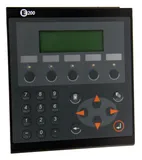
- E200: LCD, 4 lines of 20 characters, 5 mm character height; backlight lifetime 50000 h at +25°C p. 298
- Power
- E200: +24 VDC (20-30 VDC), SELV per IEC 950 or IEC 742; max. 150 mA p. 298
- Serial ports
- E200: RS-422 on a 25-pin female D-sub and RS-232 on a 9-pin male D-sub, 4-40 UNC locking screws p. 298
- Memory
- E200: 64 kb flash memory for the application; up to 150 blocks per project p. 41, 298
- Front panel size
- E200: 147 x 163.5 x 5 mm; mounting depth 38 mm without D-sub, 107 mm with D-sub p. 298
- Sealing
- E200: IP 65 front panel, IP 20 rear panel p. 298
- Fuse
- E200: 1 AT, Littelfuse R452 001 (Nano2 SMF Slo-Blo), at the rear near the 24 V connector p. 298
- Temperature
- E200: +0° to +50°C ambient, -20° to +70°C storage; max 85% relative humidity, non-condensing p. 298
- Keyboard
- E200: membrane keyboard with polyester snap discs, 1 million operations p. 298
- Real time clock
- E200: total max error 1 min/month; clock battery life at least 10 years p. 298
- Weight
- E200: 0.7 kg excluding D-sub p. 298
- Programming cables
- MAC-PROG/9-CAB (also called CAB5) or CAB6 between PC and terminal p. 20, 284
- Alarms
- E200: 1 alarm group; alarm messages up to 18 characters p. 162, 164
What this manual walks you through
- Installing the MAC Programmer+ software p. 18
- Connecting the terminal to a personal computer p. 20
- Loading a new system program into the terminal p. 20, 21
- Switching between RUN, PROG and SETUP modes p. 22, 23
- Erasing the terminal's application memory p. 23
- Transferring a project from the PC to the terminal p. 26, 284
- Setting up alarm groups and alarm messages p. 162, 164
- Setting LED colors and blink rates from PLC registers p. 272
- Communication error messages with MELSEC PLC systems p. 328
Good to know
- Emergency stop and other safety functions should not be controlled from the terminal. p. 4
- Power should be off while connecting the terminal to a PC. p. 20
- Erasing the memory loses all data stored in the terminal. p. 23
- When downgrading a terminal's system program, the box "Overwrite PLC driver" must be marked. p. 21
- The product must not be used in an explosive environment. p. 4
Questions this manual answers
What power supply does the Beijer E200 need?
+24 VDC (20 to 30 VDC) meeting SELV per IEC 950 or IEC 742; it draws at most 150 mA. p. 298
How do I switch an E-series terminal between programming and run mode?
Press the [←] and [MAIN] keys at the same time; this switch can be guarded by a password. p. 22
How is the display contrast adjusted on the E200?
With a potentiometer in the upper right corner at the rear of the terminal. p. 298
What happens when the terminal shows a communication error?
The terminal shows an error message and starts again by itself when communication with the PLC restarts. p. 26
How many blocks can an E200 project hold?
Up to 150 blocks. p. 41
Contents
Chapters and sections
Each line opens the PDF at its page.
- Safety precautions4
- 1 Introduction12
- 2 Installation of the softwares18
- 3 Terminal functions22
- 4 General36
- 5 Programming using MAC Programmer+46
- 5.1 Creating a project46
- 5.2 Changing project settings49
- 5.3 Creating a block via the Block Manager50
- 5.4 Programming blocks57
- 5.5 The graphic block editor58
- 5.6 The text block editor68
- 5.7 The symbol manager70
- 5.8 I/O change73
- 5.9 Change BDTP station74
- 5.10 I/O crossreference75
- 5.11 Other editors76
- 5.12 The File Menu77
- 5.13 The Edit Menu78
- 5.14 The View Menu78
101 more lines, from page 81 on
- 5.15 The Functions Menu81
- 6 Graphic presentation and maneuvering98
- 7 Text-based presentation and maneuvering138
- 8 Trends150
- 9 Message library158
- 10 Alarm handling162
- 11 Recipes170
- 12 Passwords178
- 13 Report print-outs182
- 14 Time control188
- 15 System monitor190
- 16 Index addressing192
- 17 Communication196
- 18 Network communication212
- 19 Network functions in the terminal254
- 20 LEDs272
- 21 Function keys274
- 22 Expansions card282
- 23 Project transfer284
- 24 Technical data296
- 25 Appendix328
- Index330
The whole text · 41 parts
Read the manual here as text
Its text as extracted from the PDF, unedited, in parts; each page opens the PDF at that page.
- Pages 1 to 31-3
- Pages 4 to 114-11
- 1 Introduction12-17
- 2 Installation of the softwares18-21
- 3 Terminal functions22-35
- 4 General36-45
- 5 Programming using MAC Programmer+, pages 46 to 5446-54
- 5 Programming using MAC Programmer+, pages 55 to 6355-63
- 5 Programming using MAC Programmer+, pages 64 to 7264-72
- 5 Programming using MAC Programmer+, pages 73 to 8173-81
- 5 Programming using MAC Programmer+, pages 82 to 9082-90
- 5 Programming using MAC Programmer+, pages 91 to 9791-97
- 6 Graphic presentation and maneuvering, pages 98 to 10798-107
- 6 Graphic presentation and maneuvering, pages 108 to 117108-117
- 6 Graphic presentation and maneuvering, pages 118 to 127118-127
- 6 Graphic presentation and maneuvering, pages 128 to 137128-137
- 7 Text-based presentation and maneuvering138-149
- 8 Trends150-157
- 9 Message library158-161
- 10 Alarm handling162-169
- 11 Recipes170-177
- 12 Passwords178-181
- 13 Report print-outs182-187
- Pages 188 to 191188-191
- 16 Index addressing192-195
- 17 Communication, pages 196 to 203196-203
- 17 Communication, pages 204 to 211204-211
- 18 Network communication, pages 212 to 220212-220
- 18 Network communication, pages 221 to 229221-229
- 18 Network communication, pages 230 to 238230-238
- 18 Network communication, pages 239 to 247239-247
- 18 Network communication, pages 248 to 253248-253
- 19 Network functions in the terminal, pages 254 to 262254-262
- 19 Network functions in the terminal, pages 263 to 271263-271
- Pages 272 to 281272-281
- Pages 282 to 295282-295
- 24 Technical data, pages 296 to 303296-303
- 24 Technical data, pages 304 to 311304-311
- 24 Technical data, pages 312 to 319312-319
- 24 Technical data, pages 320 to 327320-327
- Pages 328 to 335328-335
The file